How to Use the Choco 3D Text Effect Template in Photoshop Without Installing Anything
Creating stunning visual content has never been easier, especially with tools like the Choco 3D Text Effect template. Whether you're a graphic designer or someone just starting out with Photoshop, this template is a game-changer. It allows you to generate eye-catching 3D text effects without the need for complex plugins or installations. You simply open the file and replace the text in the smart object — that’s it! In this article, we’ll walk through how to use this template effectively, why it's so popular among designers, and what makes it stand out from other 3D text effect options.
What Is the Choco 3d Text Effect?
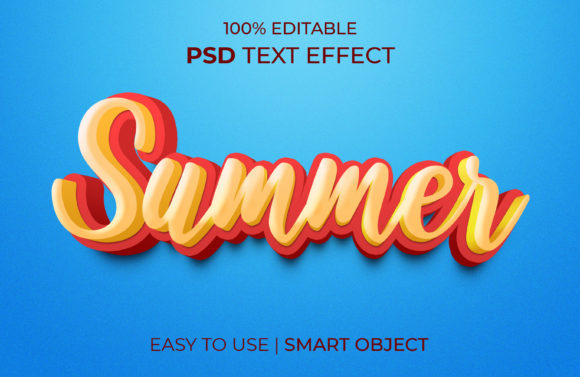
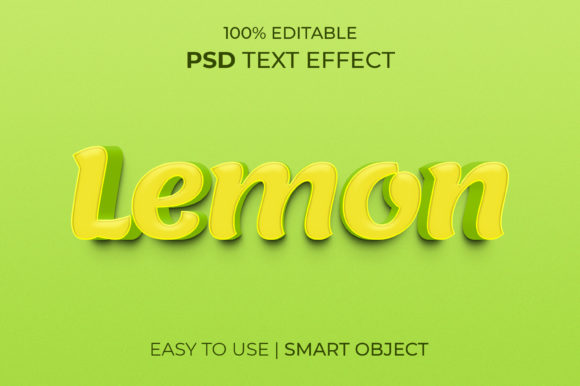
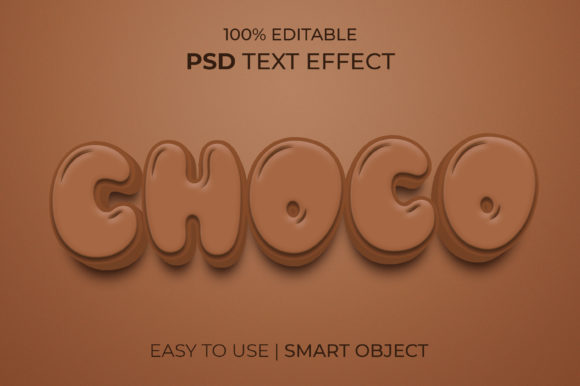
The Choco 3d Text Effect is a pre-designed Photoshop file that delivers a professional-grade 3D text look instantly. This template is ideal for anyone who wants to add depth, dimension, and style to their text-based projects without diving into advanced modeling software. The name “Choco” hints at its warm, rich aesthetic — think of deep chocolate tones and smooth gradients that give your text a sophisticated feel.
Unlike traditional 3D text creation methods, which can require hours of rendering and adjustments, the Choco 3D Text Effect uses smart objects to make the process fast and easy. This means you don’t have to worry about messing up layers or losing quality when resizing or editing your text. Everything is non-destructive and fully customizable right within Photoshop.
Key Features That Make It Stand Out
There are several reasons why the Choco 3d Text Effect template is becoming a favorite among creative professionals:
- Smart Objects Fully Editable: One of the most significant advantages is the ability to edit your text without affecting the overall design. Just double-click on the smart object, change the text, adjust the font size, and save — the rest of the effect remains intact.
- RGB Color Mode: The template is set up using the RGB color mode, making it perfect for digital designs such as websites, social media posts, and banners. This ensures vibrant colors and accurate display across all screens.
- High Resolution (2000 x 1331px): With a generous canvas size, the template gives you plenty of space to work creatively. High resolution also means your final output will be sharp and suitable for both print and online use.
- PSD File Format: As a native Photoshop file, the template offers full layer access. Each component is well-organized into groups, allowing you to tweak lighting, shadows, textures, and more with ease.
- Free Font Included: No need to search for compatible fonts — the template comes with a free font that looks great and complements the 3D effect perfectly. This saves time and ensures consistency in your design.
- Everything Included: The template is designed to be plug-and-play. All necessary assets, textures, and effects are embedded in the PSD file. You get exactly what you see in the preview, ready for customization.
Why Choose a 3D Text Effect Template?
In today’s fast-paced digital world, standing out visually is crucial. A 3D text effect can transform ordinary text into something extraordinary, adding depth and dimension that catch the viewer’s attention. These effects are widely used in branding, posters, web headers, promotional materials, and even video intros. But creating them from scratch often involves learning complex tools like Blender or Cinema 4D, which isn’t practical for everyone.
That’s where templates like the Choco 3D Text Effect come in handy. They provide a shortcut to achieving high-quality results without requiring extensive knowledge of 3D modeling. You can focus on your message rather than the technicalities of rendering and shading.
Who Benefits Most from Using This Template?
Here are some scenarios where the Choco 3D Text Effect would be particularly useful:
- Marketing Professionals: When designing campaigns, headlines with 3D effects can make your brand more memorable. The Choco effect works especially well for luxury products, food items, or anything that benefits from a warm, inviting tone.
- Graphic Designers: If you frequently create logos, invitations, or social media graphics, having a reliable 3D text effect in your toolkit can speed up your workflow and elevate your portfolio.
- Freelancers & Beginners: For those new to Photoshop, this template is an excellent way to learn by doing. You can study the layer structure and experiment with different settings to understand how 3D effects are built.
- Content Creators: Bloggers, YouTubers, and influencers can use the Choco 3D Text Effect to enhance titles and captions in their videos or blog posts, making them more engaging and polished.
How to Use the Choco 3D Text Effect Template
Using the Choco 3D Text Effect is straightforward, but let’s break down the steps to ensure you get the best out of it:
- Download the Template: Locate the Choco 3D Text Effect template from a trusted source and download the .psd file.
- Open in Photoshop: Launch Adobe Photoshop and open the downloaded .psd file. You should see a layered composition with clear groupings.
- Locate the Smart Object Layer: Find the text layer labeled as a smart object. It might be named something like “Editable Text” or “Smart Object Text.” Double-click on the layer thumbnail to open the smart object editor.
- Edit Your Text: Inside the smart object, type your desired text. Adjust the font size if needed. Remember, you’re working within the confines of the smart object, so keep the layout simple and clean.
- Save and Close: Save your changes and close the smart object window. Photoshop will automatically apply the 3D effect to your new text.
- Customize Colors and Lighting: Explore the adjustment layers and layer styles to modify the color scheme or lighting. Since everything is organized, you won’t have to guess where each setting is applied.
- Export Your Design: Once satisfied, export your design in the required format. Common choices include PNG for transparency or JPEG for flat backgrounds.
This process takes minutes instead of hours, and the result is a professional-looking 3D text effect that integrates seamlessly into any project.
Practical Applications of the Choco 3D Text Effect
Let’s take a closer look at some real-world uses for the Choco 3D Text Effect:
- Product Packaging: Imagine designing a label for a gourmet chocolate bar. The Choco 3D Text Effect would add richness and depth, aligning perfectly with the product’s theme.
- Web Headers: Use the effect for website landing pages or section headings. It adds a modern touch while maintaining readability and visual appeal.
- Social Media Banners: Instagram, Facebook, or YouTube banners benefit from bold, attractive text. The 3D aspect helps your banner pop and stay relevant longer.
- Event Posters: From weddings to corporate events, the Choco effect can be tailored to match themes like elegance, warmth, or sophistication.
- Print Materials: Brochures, flyers, and magazine covers can all incorporate the Choco 3D Text Effect to draw attention to key messages.
Each application showcases how versatile the template can be. The only limit is your imagination!
Considerations Before Choosing a 3D Text Effect Template
While the Choco 3D Text Effect is highly user-friendly, there are a few things to consider before downloading:
- Font Compatibility: Although the template includes a free font, you may want to try other fonts for different aesthetics. Be sure to test them within the smart object to see how they interact with the 3D lighting and shadows.
- Layer Complexity: While the layers are well-organized, understanding basic Photoshop navigation will help you make the most of the template. Familiarize yourself with adjustment layers and smart objects for better control.
- File Size: Due to the high resolution and embedded assets, the .psd file might be large. Ensure you have enough storage and memory to handle it smoothly.
- License Terms: Always check the licensing agreement to confirm whether you can use the template commercially or for personal projects only.
These considerations aren't meant to discourage you — they’re just ways to prepare and ensure you use the template correctly and efficiently.
Common Factors People Consider Before Adopting the Choco 3D Text Effect
When choosing a 3D text effect template, people often ask themselves the following questions:
- Is it easy to customize? Yes, thanks to smart objects and grouped layers.
- Do I need any special software? No, it works directly in Photoshop without additional plugins.
- Can I use it for commercial projects? Usually yes, but always verify the license terms provided by the creator.
- Will it maintain quality when scaled up or printed? Absolutely, due to its high-resolution setup.
- How long will it take to learn? Very little — the template is intuitive and beginner-friendly.
By addressing these concerns upfront, the Choco 3D Text Effect removes many of the barriers associated with using 3D elements in design work.
Enhancing Your Workflow with the Choco 3D Text Effect
Incorporating the Choco 3D Text Effect into your design routine can significantly boost your productivity. Here’s how:
- Speed Up Project Creation: Instead of spending hours trying to achieve a realistic 3D look manually, you can use the template and be done in under 10 minutes.
- Experiment Freely: Because the template is fully editable, you can test multiple versions of your text quickly, adjusting colors, fonts, and lighting to find the perfect combination.
- Improve Consistency: The structured layer system ensures that every version of your design maintains the same visual integrity and alignment.
- Expand Creative Possibilities: Once you’ve mastered the basics, you can start modifying the template further, such as changing background textures or adding custom animations.
These benefits not only save time but also allow you to deliver higher-quality visuals with less effort.
Final Thoughts on the Choco 3D Text Effect
The Choco 3D Text Effect is more than just a quick solution for adding 3D flair to your designs. It’s a powerful tool that blends simplicity with professionalism, enabling users of all skill levels to create impressive visuals effortlessly. Whether you're crafting a logo, designing a poster, or enhancing a digital ad, this template provides a consistent, high-quality foundation to build upon.
If you're looking for a way to level up your design game without getting bogged down in technical complexity, the Choco 3D Text Effect is definitely worth trying. And once you've used it, remember to rate it 5 stars — your feedback inspires creators to continue developing innovative resources like this one. Thank you for supporting the community and giving back to those who share their talents with us!